How 24-Inch Portable Monitors Work with MacBooks, Windows Laptops, and Chromebooks
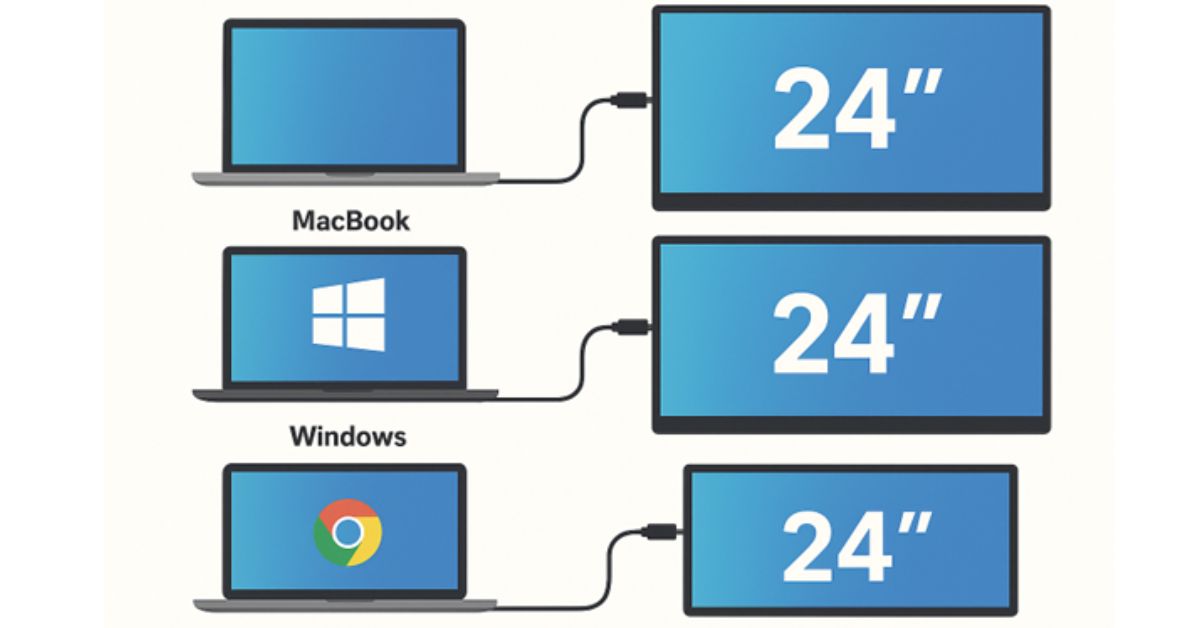
With the growth in demand for versatile and efficient display options, portable monitors have gained significant traction in recent years. These sleek and compact screens offer a portable, often lightweight, solution for those in need of an additional display when away from the office. While sizes range from 14 to 17 inches, a 24-inch portable monitor represents a sought-after choice for its optimal blend of compactness and space. In this article, we’ll discuss what exactly a portable monitor is, why a 24-inch screen matters and what features to look for, how to use them with laptops, particularly MacBooks, Windows and Chromebooks, and answer frequently asked questions to clear up any confusion about these handy devices. Let’s explore this modern computing solution in detail, starting with the basics.
What is a Portable Monitor, and Why 24″?
A portable monitor is essentially an additional display. As you can expect from the name, its defining characteristics are the portability, lighter and compact size and typically flexible connectivity options such as USB-C, HDMI and DisplayPort.
Key features include:
- Lighter, more compact and thin than a traditional desktop monitor
- Capable of drawing power from a USB-C port or a small external power adapter (rather than a big brick)
- Display connections such as USB-C (typically DisplayPort Alt Mode or Thunderbolt) or HDMI
- Plug-and-play design, often without requiring a separate monitor driver for laptops or tablets
In fact, in many cases, portable monitors are smaller than traditional desktop monitors, starting at 14-17″. The trend is toward bigger and more convenient sizes, though, and 24″ screens strike the sweet spot of being larger enough to be useful and boost productivity while still remaining portable.
At 24″, using a portable monitor essentially means that you can almost have a regular desktop-class display to go with your laptop. This can be helpful whether you use it at home, away on the road or at the office.
How Do Portable Monitors Work?
Before choosing a portable monitor, understanding how one works can help you avoid issues such as compatibility problems and will ensure that you make the most of it.
- Display Technology: Internally, portable monitors work the same way as standard monitors. They use flat-panel technology with LCD (liquid-crystal display) or IPS (in-plane switching) panels, with LED backlighting, which enables the slim and energy-efficient form factor.
- IPS panels are especially common for more expensive and higher-quality portable monitors, as they have a better viewing angle and more accurate colours than cheaper TN-type panels.
- Connectivity and Power: The two main considerations are the video connection and the power connection.
- Video: Portable monitors often support video output via USB-C with DisplayPort Alt Mode (or Thunderbolt) or more standard HDMI. This enables the laptop to transmit the display signal to the monitor via a single cable.
- Power: Some monitors get the power via the same USB-C cable (if the laptop/host device can provide enough power), while others require a power adapter or a second cable (video in one, power in the other).
- Plug-and-Play and Drivers: On modern systems (MacBooks, Windows or Chromebooks), when you plug the monitor in, the operating system recognises it as a standard external display. The operating system takes care of screen arrangement, orientation (landscape or portrait mode) and scaling, resolution, etc. Portable monitors usually don’t include any special drivers, but rather connect as a generic monitor.
Orientation, Docking and Multi-Monitor Scenarios
With a 24″ portable monitor, you can arrange it to the left or right of your laptop screen. Orientation flexibility increases further if the monitor supports orientation change (portrait mode) and comes with a case or stand that tilts or rotates the monitor 90 or 180 degrees. The combination is especially convenient for a dual-monitor setup. In fact, studies have demonstrated that multi-monitor setups (duo displays) tend to improve productivity: people with two monitors are, on average, more productive because they take less time to switch between different windows.
Using a 24-Inch Portable Monitor with Different Device Types
With MacBooks
MacBooks are one of the most portable and laptop-like operating systems in terms of portable monitor compatibility, especially if you have a recent model with USB-C and Thunderbolt ports.
Things to look for:
USB-C or Thunderbolt support for external display on the MacBook
USB-C to USB-C cable (or USB-C to HDMI, USB-C to DisplayPort) according to the monitor’s port
In System Preferences / Displays you can move the secondary monitor to left or right of the MacBook’s screen, or even above it.
For a 4K “retina-style” display, ensure that the MacBook’s GPU and port can support 4K at 60Hz refresh rate or your desired refresh rate.
MacBooks generally do a good job with scaling to handle higher-resolution monitors well (to get a Retina-like clarity), but you may need to tweak this a bit to get the text more to your preference.
Why it works well: MacBooks tend to work very well for external monitors, especially high-resolution ones, and it’s pretty much a one-cable solution with USB-C.
With Windows Laptops
Windows laptops are not far behind (capability-wise) but are more heterogeneous in terms of ports, graphics, drivers and support.
Things to look for:
USB-C with DisplayPort Alt Mode, or HDMI or mini-DisplayPort on the laptop
GPU capability to drive the portable monitor at your desired resolution and refresh rate
In Windows Settings → System → Display you can arrange the two displays (or more, if using a desktop monitor at the same time), choose extend or duplicate/mirror screens and which screen should be primary.
If you use two monitors, such as in a “dual portable monitor” setup, ensure that the laptop has the ports to connect both monitors at the same time or use a docking station / USB hub.
Be careful with some very high-resolution monitors: sometimes Windows may have issues scaling applications correctly on high-DPI screens. Check Windows scaling settings.
Why it works well: Windows provides a lot of flexibility in multi-monitor scenarios and the 24″ portable monitor can be your primary external monitor when docked, but also your secondary screen when you need to pack light.
With Chromebooks
Chromebooks aren’t the first device that people think about in terms of using with external monitors. However, increasingly modern Chromebooks support external displays, particularly through USB-C, quite well.
Things to look for:
USB-C video output on the Chromebook. Look for DisplayPort over USB-C or USB-C Alt Mode in the specs.
Graphics hardware on the Chromebook supports the resolution and refresh rate of the portable monitor (check the Chromebook’s spec sheet).
In Chrome OS you can set up the arrangement of the screens (move the floating window) via Settings → Device → Displays and choose to extend or mirror.
Power: In the case of Chromebooks sometimes the GPU and USB-C port aren’t able to power the monitor via a single cable. This may also be affected by the laptop’s battery charge level, so in this case you may need to use the monitor’s power adapter to power it separately from the USB-C cable for video.
Why it works acceptably: For a lot of users a 24″ portable monitor essentially turns a Chromebook into a laptop-plus-desktop experience. It’s particularly useful for productivity, split-screen workflows or multi-tasking.
Picking the Right 24″ Portable Monitor: Specs and Features
| Feature | Why it matters | Target spec for productivity |
| Resolution | Higher resolution gives sharper text, more screen-space | 4K (3840×2160) or at least QHD (2560×1440) |
| Refresh rate | Most productivity setups are fine at 60Hz; higher rates matter for video/gaming | 60Hz is standard; 120Hz+ if desired |
| Connectivity ports | Determines ease of setup across devices | USB-C (with power + video) + HDMI or mini-DP backup |
| Power draw / single-cable support | A monitor powered via same cable is simpler to set up | Single-cable (USB-C) ideal |
| Stand / orientation / ergonomic support | Good positioning improves comfort | Tilting stand, portrait support, VESA mount option |
| Colour accuracy & panel quality | For creative work these matter a lot | IPS panel, >90% sRGB (or higher if for creative) |
| Weight & portability | As “portable” it must be reasonably lightweight | Under ~3-4 kg (for 24″) and slim profile |
| Compatibility across OS | Ensure it works with Mac, Windows, Chrome OS | Explicit support for USB-C Alt Mode, drivers if needed |
Resolution and refresh rate matter but, in general, when choosing a 24″ portable monitor you’ll want a brand with reliable support and at least a 4K or QHD display.
For deeper insights, the ASUS Edge Up blog has a comprehensive article, “What to know before you buy a portable monitor”, which reviews several portable monitor options and discusses many of these features in detail.
Use Cases
Portable monitors work for a variety of use cases, including:
Laptop + external monitor “dock” at home: You can use your laptop and connect a portable monitor via USB-C to serve as the primary display. The benefit is that with one cable you connect the portable monitor and, optionally, to a hub that can be shared with an external keyboard and mouse.
Travel or hybrid work: When you travel and take your laptop with you, you can now also pack a portable monitor and plug in and create a two-screen setup in a hotel room, a coworking space, an airport or a client’s office.
Coding, design, multi-tasking: Having a big external screen makes a difference. For example, you can split the screen into multiple panes (code on the left, preview in the browser in the middle, reference docs on the right) and use two applications at the same time (email on one side and code on the other). There’s evidence that a dual monitor setup significantly boosts productivity, in part because users take less time to switch between windows in multi-monitor scenarios.
Creative work on the go: If you need to edit photos or videos, a high-quality portable monitor (anchor-text 1 4K 24-inch monitor) allows you to do this with a decent resolution beyond the laptop screen and sufficient room to manage it.
Presentation, client display: Another option is to use the portable monitor as a second display. For example, you can show documents or slides to a client while having the laptop screen to your side for taking notes.
FAQs
Q1: Will my laptop be able to power a 24″ portable monitor via USB-C alone?
A: It depends. Some portable monitors are designed with single-cable operation in mind (video and power combined) and will work over USB-C, but in the case of a large 24″ panel, especially at 4K resolution, it can draw more power than the host laptop/PC is able to provide. In such cases, you might need a powered USB-C hub or you’ll need to use the monitor’s power adapter separately.
Q2: Does a MacBook support 4K external displays?
A: Yes, most modern MacBooks with USB-C and Thunderbolt support external 4K displays at 60Hz. It’s always a good idea to check the model’s official spec sheet for details, in case you want to run a 4K monitor and know your monitor’s input requirements.
Q3: What if I have a Windows laptop with only HDMI output?
A: No problem, just check that the portable monitor has an HDMI port (or get an HDMI→USB-C/DisplayPort adapter). The only limitation is that sometimes, laptops may have older generation HDMI ports (e.g. HDMI 1.4) and that may limit refresh rate or pixel clock.
Q4: Can I connect a Chromebook to a 24″ portable monitor?
A: Yes, it’s possible, if the Chromebook supports video output through USB-C or HDMI. Check the Chromebook’s spec for support for “USB-C DisplayPort Alt Mode” or support for external monitor/display.
Q5: How do I set up two monitors or a “stacked” monitor configuration?
A: On a Mac or Windows, you would go into the Display Settings and select how the screens are arranged (side by side, one above the other, etc.). If you’re using two portable monitors in a “stacked” configuration, for example, a dual portable monitor arrangement where you stack one display on top of the other, you’ll want to make sure that your monitor case or stand supports this and that your laptop can drive both displays. Solutions like the “dual monitor” link (anchor text 3) offer a physical stacked dual-screen solution.
Q6: Are there performance or scaling issues with high-resolution portable monitors?
A: Yes, in Windows, for example, you may need to change the scaling factor to make text/icons appropriately sized on the screen (150% or even more). Some legacy applications may not scale properly. macOS typically has less scaling issues but you might still want to adjust the scaling factor to be comfortable for your eyes. Chromebooks can be hit or miss. Also, it’s worth checking if your laptop’s GPU has enough bandwidth to drive a 4K resolution and additional extended display.
Also Read: IBS-TH5: Indoor Hygrometer a Complete Overview, Performance, and User Guide
Tips & Best Practices
Use the highest quality cable the monitor supports (USB-C with certification if needed, or HDMI high-speed) to ensure good signal quality.
If you use it with a laptop and the portable monitor serves as your primary monitor (like a desktop), you can use a docking station so that you can plug in a keyboard, mouse and external hard drives at the same time.
Pay attention to laptop cooling: When open and connected to an external display, it may be putting more load on the GPU or graphics driver and could potentially heat up more.
Position the monitor correctly: Many portable monitors include a hard case folio cover that doubles as a stand. Use the stand, as it gives you a better ergonomic setup than simply having it balanced on a desk or lying flat on a table.
Resolution and clarity: especially with 4K on a 24″ panel, it’s a good idea to set a comfortable scaling factor and resolution.
Portability: if you move the monitor often (for example, it’s for travel or work commute) consider how you’ll protect it (hard sleeve case or cover) and take its weight into account.
Dual-monitor setup: in Windows, you may want to configure one monitor as primary and the other as secondary and choose which settings you prefer for taskbar, wallpaper, etc., a similar idea for Mac: go to System Settings > Displays and drag the menu bar icon to the primary monitor.
Summary and Conclusion
Portable monitors have become a handy solution for users needing an additional display when out and about. In this article, we went through the essentials about these handy gadgets, from the basic definition, to technical deep dive, to use cases and to a detailed FAQ. A 24″ portable monitor such as the anchor-text 1 4K 24-inch monitor, or a product from the anchor-text 2 dual portable monitor range, or even a dual monitor (anchor-text 3 dual monitor, 23-inch stacked) setup, represents a highly versatile productivity enhancement. In all the above scenarios, MacBooks, Windows laptops and Chromebooks can use a 24-inch portable monitor with a few considerations to ensure compatibility, such as checking the ports, external display support and power delivery. With the right setup, a laptop plus 24-inch portable monitor combo can turn a laptop into a full workstation – be it at home, the office or on the road.